
Cloud Upload
Cloud Backup is a premium feature that automatically uploads your finished recordings to your preferred cloud storage service.
Supported Services
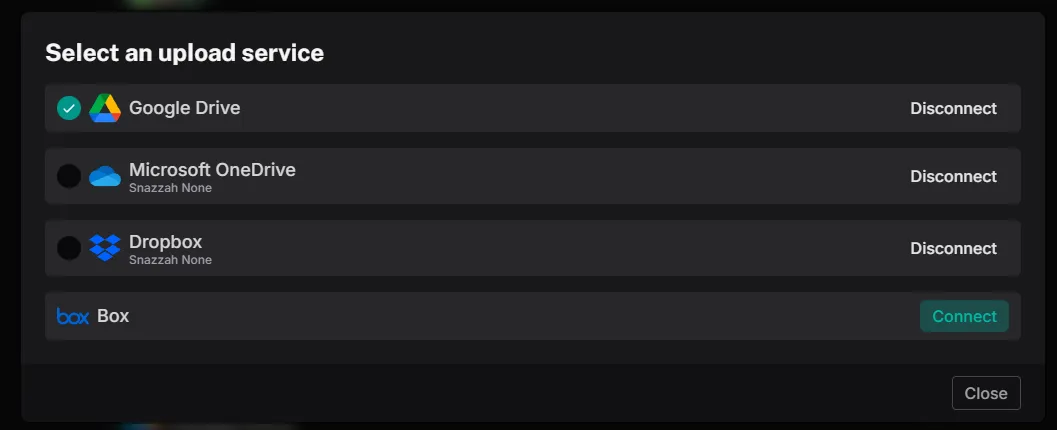
Section titled “Supported Services”- Google Drive
- Microsoft OneDrive
- Files will be under “Apps/Craig”
- Dropbox
- Files will be under “Apps/CraigChat”
- Box
-
Make sure you have an active supporter subscription.
-
Log in to the Craig Dashboard.
-
Connect your cloud storage account (Google, Microsoft, Dropbox, or Box).
-
That’s it! Your recordings will now automatically upload when they finish.
How It Works
Section titled “How It Works”When your recording ends, Craig will start processing your recording in the selected format and DM you once the upload has finished with a link to the file.
The filename will include the recording ID and date for easy organization.
Frequently Asked Questions
Section titled “Frequently Asked Questions”Where do my recordings go?
Section titled “Where do my recordings go?”Your recordings are automatically placed in a folder named “Craig” in your cloud storage (unless specified above). You don’t need to create this folder, Craig will create it automatically.
Which account receives the upload?
Section titled “Which account receives the upload?”The recording is uploaded to the account of the person who started the recording. If it was an auto-recording, it uploads to the account of the person who enabled auto-recording for that channel.
Can I share benefits with my server?
Section titled “Can I share benefits with my server?”How long until my recording is uploaded?
Section titled “How long until my recording is uploaded?”Upload time depends on the length of your recording. You’ll receive a DM notification when the upload is complete or if it has failed.